





Example 3
Example 2
Example 1
Tabs Container - Example
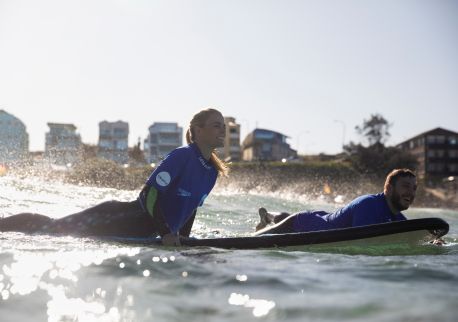
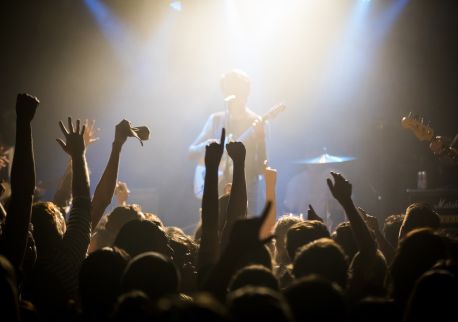
Newcastle’s events calendar is jam-packed. For sports fans, there’s the biggest surfing festival in Australia, Surfest; music lovers can enjoy regular live music and concerts, and the Newcastle Jazz Festival in August; plus, regular art and culture exhibitions, theatre and markets.
Aboriginal experiences
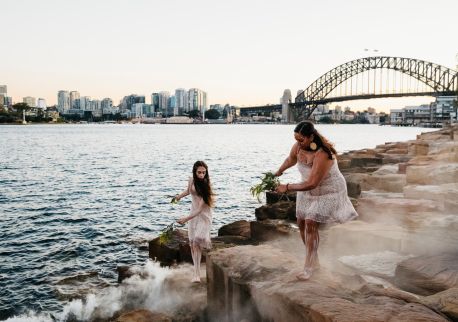
Connect with the rich storylines that hark back thousands of years with a Muurrung Murai tour. Join Wiradjuri and Worimi man Amos Simon as he leads you through the stunning Glenrock State Conservation Area. You’ll learn more about native ingredients and traditional medicines, language and see culturally significant sites along the way before enjoying a didgeridoo performance.
Arts and culture
The Newcastle Art Gallery (reopening in February 2026) is one of the city's key attractions, spotlighting creative talent from the NSW region and further afield. Along the Honeysuckle harbourside precinct, see an array of public art including the Matthew Harding sculpture outside the (now closed) Maritime Centre, drop into the kid-friendly Newcastle Museum and check out the comprehensive programs at Civic Theatre Newcastle and Newcastle City Hall. Find more ways to get an arts and culture hit in Newcastle here.
History and heritage
Newcastle’s history traces back many thousands of years to the Traditional Custodians of its lands and waters: the Awabakal and Worimi people. This rich heritage intersects with colonial history from the 1790s onwards. You can learn more about Newcastle’s many eras and phases of growth at the Newcastle Museum.
Nature and outdoor activities
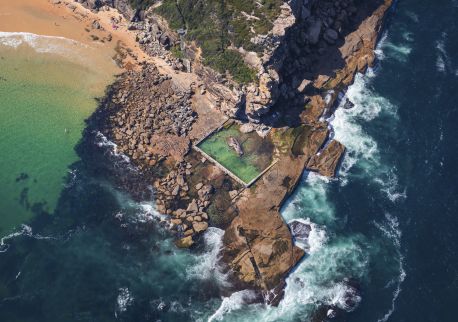
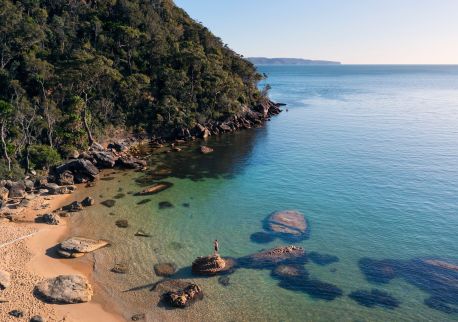
You’re spoilt for choice when it comes to soaking up natural beauty in Newcastle. Take a stroll along the 6km Bathers Way walk, a scenic route connecting the historic Nobbys Beach to Merewether Ocean Baths. The walk combines history with the dazzling coastal setting – you’ll pass the memorial constructed to commemorate the 100th anniversary of the ANZAC landing at Gallipoli along the way. Don’t miss the picture-perfect green steps and Art Deco pavilion at the Newcastle Ocean Baths – an ideal spot for a swim as you meander.
Eat and drink
Food lovers are in for a treat in Newcastle. Along the Honeysuckle harbourside precinct, you’ll find a range of waterside bars, cafes and restaurants including Blanca. Have lunch by the ocean at Merewether’s Beach Hotel, head to nearby Modus Brewing for a pale ale and finish the afternoon with a walk to Merewether Baths for a paddle. For other swim-and-supper options, have a dip in the Newcastle Ocean Baths followed by fish and chips at seafood diner Scottie’s.
Art Pass
FAQs
What time do Sydney nightclubs usually open and close?
What time do Sydney nightclubs usually open and close?
Sydney nightclubs generally open between 7pm and 10pm and close between 2am and 6am.
Do Sydney nightclubs have a dress code?
Do Sydney nightclubs have a dress code?
Yes, Sydney nightclubs have a dress code. It varies between clubs but most expect smart casual dress and prohibit thongs/flip flops, singlets, sportswear, and high-vis/work clothing. Check the club’s website or social media ahead of time to confirm the dress code.
Do you have to pay an entry fee at most nightclubs in Sydney?
Do you have to pay an entry fee at most nightclubs in Sydney?
Generally, yes – you will have to pay an entry fee. Popular venues charge around $15-30 though prices may be higher for special events or big name DJs.
Which Sydney nightclubs are best for electronic music?
Which Sydney nightclubs are best for electronic music?
Some of the best nightclubs for electronic music are:
Club 77
Carousel Bar and Ballroom
What areas in Sydney have the best nightlife?
What areas in Sydney have the best nightlife?
You’ll find the best nightlife in Sydney along Oxford Street in Darlinghurst, Darling Harbour, Kings Cross and Surry Hills.